eamon
New member
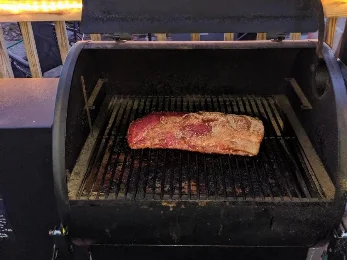
Hi all - I've determined the on-board chamber sensor for my Traeger (pro 575) is wildly inaccurate. I adopted FireBoard, and I use those values to determine my settings.
As for the Traeger settings - currently the Traeger app is reporting a temp of 175 F. FireBoard chamber probe shows 235 F. Big difference.
I'm not concerned about trusting the Traeger probe - the FireBoard has proven to be reliable, and has led to great results. That's my source of truth.
But I wanted to have a dashboard to view via a web browser, that uses deltas (changes) over a 10, 30 and 60 minute window to target internal temp completion time.
Fortunately, FireBoard exposes this data via their API. To use this script, you must have a fireboard.io account tied to your devices. This login is prompted for in the script.
This way I don't need to access the predictive time function of the FireBoard app. So I made a script.
Caveats:
Wildly inaccurate until you reach the final stages of the cook (for ETA).
Linear prediction - does not account for stalls, etc. But as I said, I have found it useful for the last 2-3 hours of the cook.
Pros:
Can be run on any windows machine that supports PowerShell. Does not rely on any external libraries to run.
The script does supply helpful info, which I have found value in adjusting temps.
Web server can be viewed on anything I've tried - iOS, Windows, etc. All browser based.
Attached is the script. To run it:
Launch PowerShell as admin (needed to open firewall ports to allow viewing from anything other than localhost)
Run script
Prompts:
1 - Windows authentication (enter email address and password for your fireboard.io account - windows prompt as these are encrypted to prevent credential leak)
2 - what is the smoke chamber channel (excludes this channel from predictive timing) - usually 1 for me
3 - Target mode - if you have different temp targets per channel, select 2. Otherwise select 1 for all of the remaining channels to target a specific temp.
4 - Enter temp(s) as appropriate
5 - Do you wish to enter smoke chamber low/high temps? This causes the UI to display red warning for smoke chamber probe if the value falls outside of this range.
Upon answering the prompts, on the computer that is running the script, you can point your browser to http://localhost:8080. You should see something like this:


The PowerShell script will also display info via the console:

Attached is the script. No support offered
As for the Traeger settings - currently the Traeger app is reporting a temp of 175 F. FireBoard chamber probe shows 235 F. Big difference.
I'm not concerned about trusting the Traeger probe - the FireBoard has proven to be reliable, and has led to great results. That's my source of truth.
But I wanted to have a dashboard to view via a web browser, that uses deltas (changes) over a 10, 30 and 60 minute window to target internal temp completion time.
Fortunately, FireBoard exposes this data via their API. To use this script, you must have a fireboard.io account tied to your devices. This login is prompted for in the script.
This way I don't need to access the predictive time function of the FireBoard app. So I made a script.
Caveats:
Wildly inaccurate until you reach the final stages of the cook (for ETA).
Linear prediction - does not account for stalls, etc. But as I said, I have found it useful for the last 2-3 hours of the cook.
Pros:
Can be run on any windows machine that supports PowerShell. Does not rely on any external libraries to run.
The script does supply helpful info, which I have found value in adjusting temps.
Web server can be viewed on anything I've tried - iOS, Windows, etc. All browser based.
Attached is the script. To run it:
Launch PowerShell as admin (needed to open firewall ports to allow viewing from anything other than localhost)
Run script
Prompts:
1 - Windows authentication (enter email address and password for your fireboard.io account - windows prompt as these are encrypted to prevent credential leak)
2 - what is the smoke chamber channel (excludes this channel from predictive timing) - usually 1 for me
3 - Target mode - if you have different temp targets per channel, select 2. Otherwise select 1 for all of the remaining channels to target a specific temp.
4 - Enter temp(s) as appropriate
5 - Do you wish to enter smoke chamber low/high temps? This causes the UI to display red warning for smoke chamber probe if the value falls outside of this range.
Upon answering the prompts, on the computer that is running the script, you can point your browser to http://localhost:8080. You should see something like this:
The PowerShell script will also display info via the console:
Attached is the script. No support offered